NutriAdmin can now send your clients a short text message reminder for their appointments, on top of the email reminder you already know. The text contains just the essentials — your name and the date and time of the appointment — so clients see it at a glance, even on their lock screen.
Before you start
- Get your client's agreement first. Only send text reminders to clients who have told you they want them — for example when booking the appointment. Text messaging rules (especially in the US) require this consent.
- Add the client's mobile number to their record. Open the client's record and make sure both the phone number and the country are filled in. Landlines won't work — it must be a mobile number.
Sending a text reminder
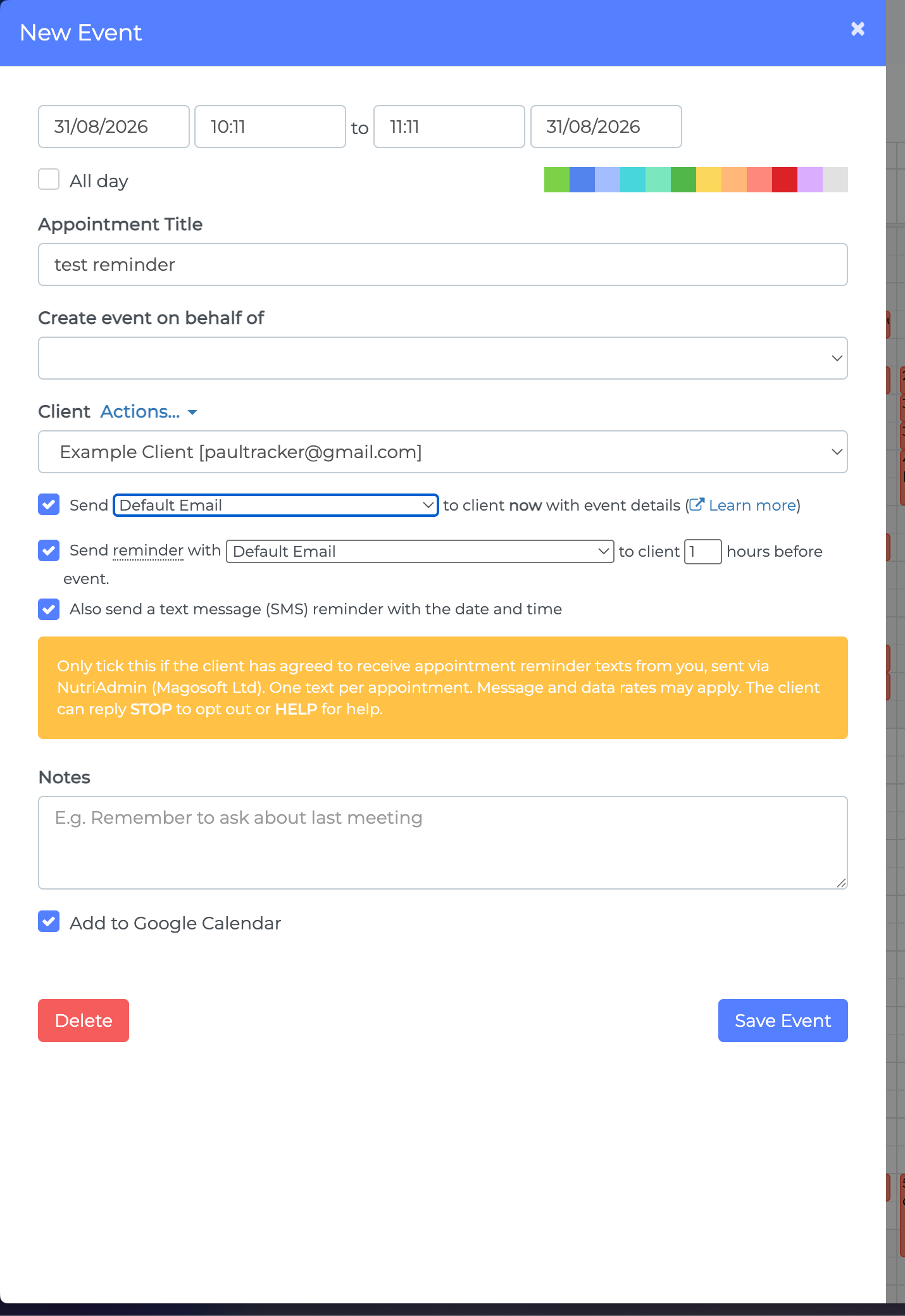
- Go to your Calendar and create (or edit) an appointment with a client selected.
- Tick Send reminder and choose how many hours before the event it should go out — exactly as you would for an email reminder.
- Tick Also send a text message (SMS) reminder with the date and time. You'll see a note reminding you to only enable this for clients who have agreed to receive texts.
- Click Save Event. That's it — the text will be sent at the same time as the email reminder.
What your client receives
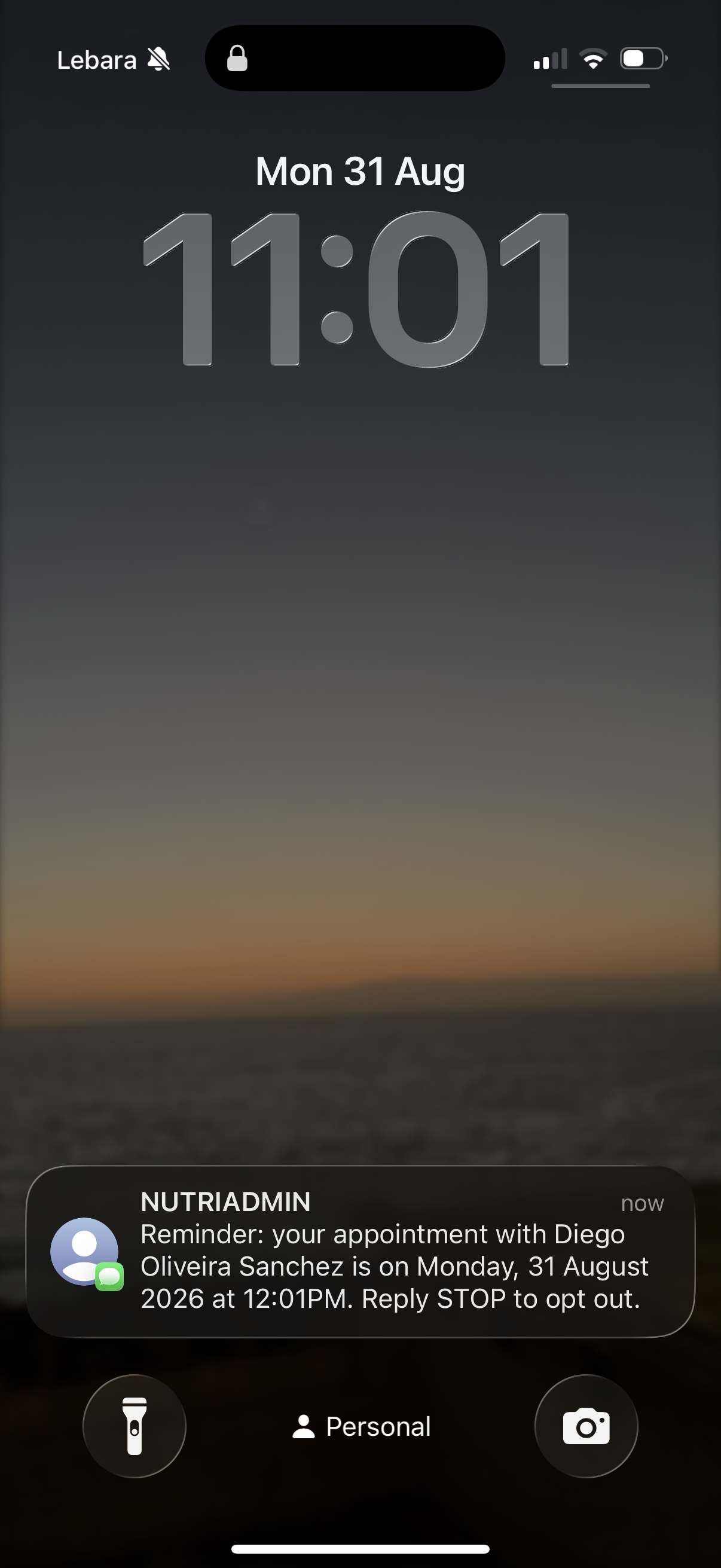
Your client gets a short, automatic text like this:
Reminder: your appointment with Jane Smith is on Monday, 31 August 2026 at 12:01PM. Reply STOP to opt out.
The message always shows your name and the appointment's date and time in your timezone, using your calendar's time format. It cannot be customised — if you want to send richer content, use the email reminder, which supports templates.
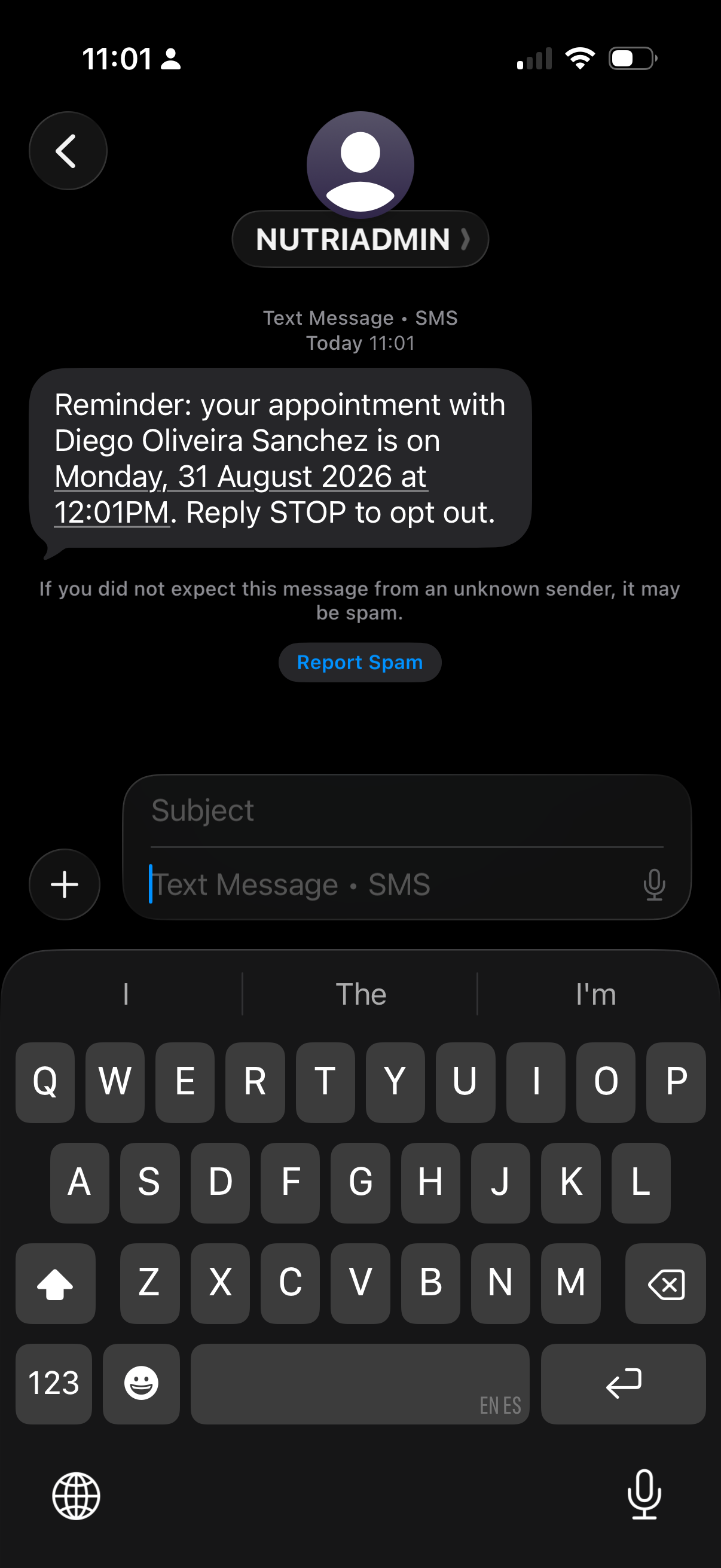
Clients can opt out at any time by replying STOP to the message. If a client has opted out, future texts to their number will not be delivered.
Troubleshooting
- "This client has no phone number or country code on record" — add both to the client's record and save the appointment again. The email reminder still goes out either way.
- The text was skipped — after saving, NutriAdmin tells you if the text couldn't be scheduled, for example when the number isn't a valid mobile. The email reminder is never affected.
- Was it sent? — check your notifications in NutriAdmin: you'll see an entry confirming the text message reminder was sent to your client.
- To protect everyone from spam, there are sensible daily limits on how many texts can be sent. If a limit is reached, NutriAdmin lets you know when you save the appointment, and the email reminder still goes out as normal.